Session 4 • August 27, 2026
We kicked off Session 4 with a simple but important mindset shift: collecting names is not the same as doing research. Four classes into our two-month series, it was time to move from building a tree to building a trail — one that another person, or a future version of you, could follow a hundred years from now.
Quick Check-In: Accounts, Hints, and DNA Kits
We opened with a round of check-ins on where everyone stood with their Ancestry and FamilySearch accounts. The consensus: hints are showing up, but a lot of them don’t look right. That’s completely normal. Ancestry’s green leaf hints are suggestions, not conclusions — it’s always on you to evaluate whether a record actually belongs to your ancestor before accepting it.
On the DNA front, Lawrence shared that his wife Evelyn completed a test through Ancestry about ten years ago. The good news: Ancestry doesn’t delete old results. If the test was done through Ancestry, the data should still be there and can be linked to your tree. Tests done through MyHeritage or 23andMe are a different story — those results can’t be directly linked using the same method, so if that’s where your kit lives, we’ll need a different approach.
One time-sensitive note: Ancestry was running a sale at the time of our session, with kits available for $34 off the regular price of $99–$125. Sales like this come around a few times a year — if you’ve been on the fence about testing, that’s the window to watch for.
The FamilySearch–Ancestry Transfer: Proceed with Caution
One of the most common questions we get is how to move a tree from FamilySearch into Ancestry. The short answer: you can, but be careful.
FamilySearch is a global, collaborative tree. Anyone can edit it, and because of that, errors propagate quickly. A good example from my own research: a supposed ancestor named Levi Edmondson appears in FamilySearch with no source records to back him up — just a name someone added that then spread across dozens of trees. On top of that, a Civil War service record got attached to him that would have required the man to be 95 years old at the time of service. That kind of error gets imported right along with the accurate data if you pull the tree in without checking it first.
Ancestry limits automatic downloads from FamilySearch to four generations, which is a reasonable guardrail. My recommendation: before you import anything, open FamilySearch and look at what’s actually there. If you agree with the first two or three generations, go ahead and pull those in. Beyond that, use the manual method — copy and paste names into Ancestry one at a time so you’re verifying as you go.
Transferring in the other direction — from Ancestry back to FamilySearch — works through the syncing feature when both accounts are linked. We’ll cover that process in detail next session.
Reading Census Records
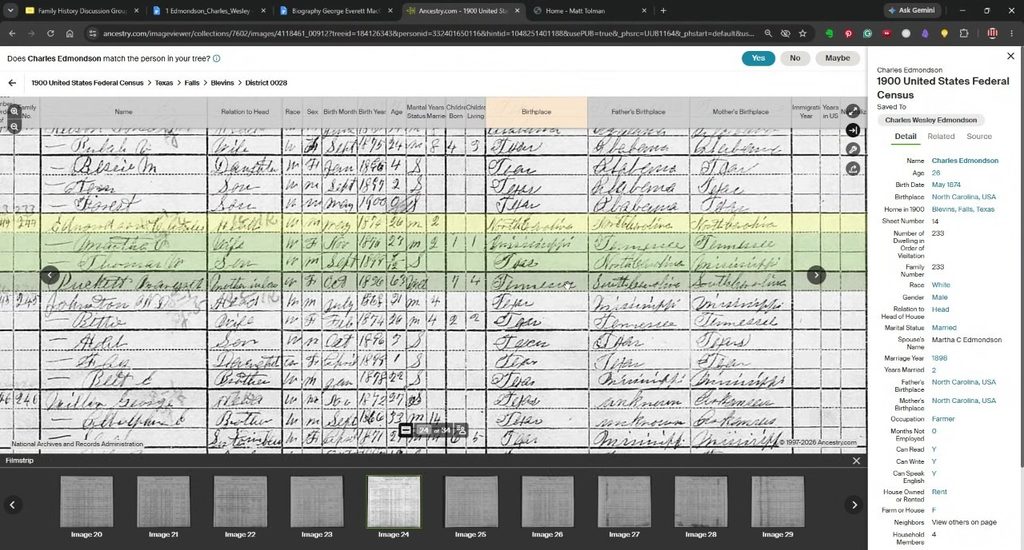
The 1910 census record for Charles is a good example of what you’re looking for — and what to watch out for.
The record shows Charles as head of household in Wichita Falls, Texas: white male, age 35, first marriage of 12 years, born in North Carolina, occupation: carpenter working for the railroad. It also lists his father’s birthplace as England. That’s incorrect — I know from other records that it isn’t accurate. The reason it’s wrong is noted right in the record itself: the wife, Martha Clementine Pucket, is listed as the person who provided the information to the census taker. She likely didn’t know where his parents were born.
Worth noting: in many census records, the family surname is spelled “Edmonson” — one d instead of two. That’s not a transcription error on my part; that’s what the enumerator wrote. Spelling variations like this are the rule, not the exception. If you search only on the exact modern spelling of a surname, you will miss records. Always try alternate spellings — drop a letter, swap a vowel, search phonetically — because the person holding the pen on census day wrote what they heard, and what they heard depended entirely on who answered the door and how they pronounced it.
That’s a critical habit: always note who gave the information in a census record, because that person’s knowledge has limits. The record is still valuable — it gives you the household, the children, the approximate ages, the location — but you cross-reference everything against other records before treating it as confirmed.
Find a Grave: A Free Resource Worth Knowing
One of the hints that came up during the walkthrough was a Find a Grave memorial for Charles. Find a Grave is a free, volunteer-run website organized around cemeteries across the United States. Volunteers go out and photograph headstones, record details, and sometimes track down obituaries to attach to the memorial page.
It’s worth checking for any direct-line ancestor. The information you find there — burial location, death date, sometimes a full obituary — can fill in gaps that other records don’t cover. In one case from our session, a volunteer had actually located and uploaded an obituary for an ancestor that listed additional family members by name.
A quick practical note: if you’re browsing Find a Grave on your phone, the mobile interface only shows the faded record image — the typed hints and transcription don’t display. Use a computer for detailed viewing.
Structuring Your Research Notes
This is the piece most people skip, and it’s the piece that costs them the most time later. Here’s the system I use:
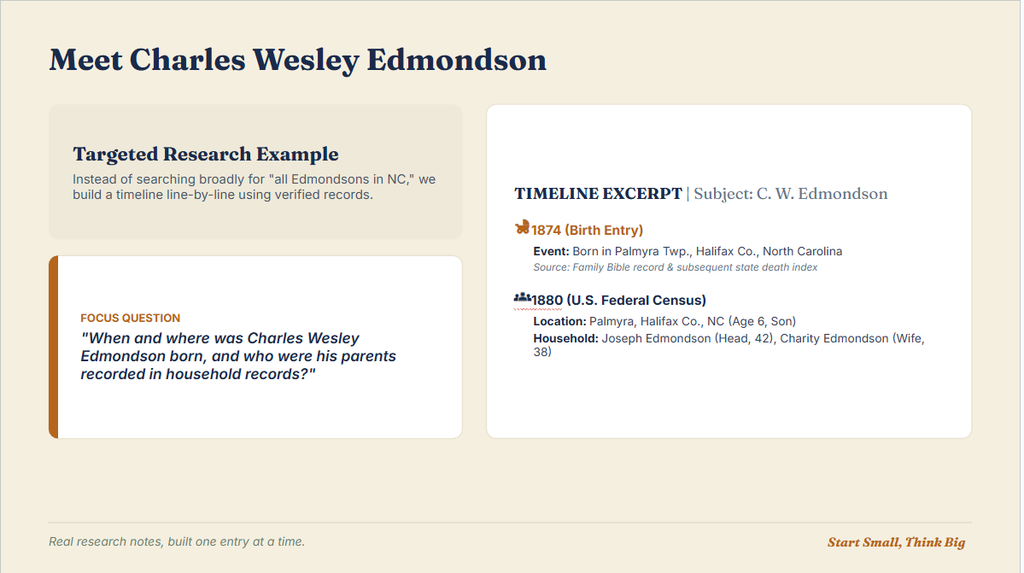
One document per direct-line ancestor. I don’t mix research on multiple people into one file. Each great-grandparent, each great-great-grandparent gets their own dedicated document.
A clear header. Name, birth year, and research question at the top so you always know who you’re looking at.
Chronological order. Drop everything into the timeline as you find it. As the timeline fills in, gaps become visible on their own — you don’t have to go looking for what’s missing.
Footers, not endnotes. I put source citations in the footer of the page where the information appears. That way, if someone (including future-you) is reading page 4 and wants to verify a record, the source is right there — not at the back of the document.
Photos. Drop in photographs, census images, and other visuals as you go. Old black-and-white photos can be uploaded to Ancestry, which will colorize them automatically. The newer tools also remove scratches and damage.
For historical context — understanding what was happening in a particular county or township during your ancestor’s lifetime — I use Perplexity as a deep research tool. It’s free up to a point and, importantly, it shows its sources so you can verify what it gives you. A simple search like “tell me the history of Palmyra, North Carolina” will get you enough background to understand the records you’re reading.
Citations: Think 100 Years Ahead
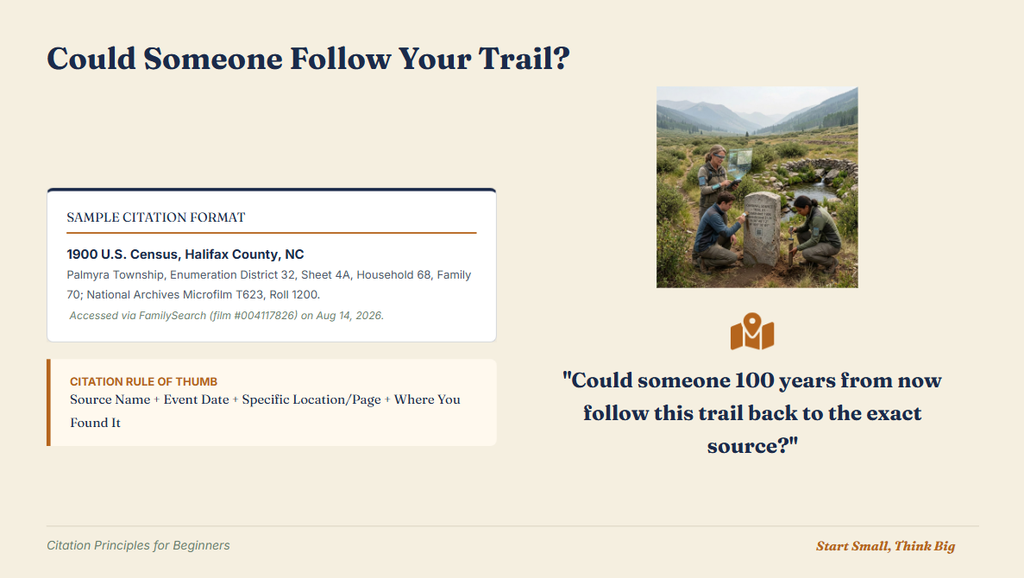
Every source you record should include enough information that someone else could find it independently. The rule of thumb I use:
Source name + Event date + Specific location/page + Where you found it + Date you accessed it.
A real example from my notes: “CW Edmondson and M.C. Pucket, Texas County Marriage Index 1837, database with images, FamilySearch, accessed April 2022, image 1 of 1.”
That one line tells a future researcher exactly what the record is, where it lives, and when I last confirmed it was there. Websites change. Records move. If your only citation is a URL with no other context, it may be useless in ten years.
Using AI as a Research Assistant
If you’re staring at an ancestor and genuinely don’t know what records to look for, this is a legitimate use for AI tools. Open Gemini, Claude, or ChatGPT and ask something like:
“I’m researching my third-great-grandfather who was born in 1870 in North Carolina. What documents should I look for?”
The model will generate a checklist of record types — census records, vital records, land deeds, military records, church records — and may suggest sources you hadn’t thought of. It won’t do the research for you, but it can point you toward the right doors.
I also shared how I’m experimenting with voice dictation for research notes: turning on the microphone in Google Docs, talking through what I’m finding as I find it, and then using an AI model afterward to clean up the transcription into readable notes. It’s faster than typing when you’re moving through records quickly.
Navigating Ancestry: What the Symbols Mean
For anyone still getting oriented in Ancestry’s tree view, here’s a quick reference for the symbols that matter most:
- Green leaf: Ancestry thinks it found a matching record. Review it — don’t just accept it.
- Dark blue DNA dot: You have DNA matches that connect through this ancestor.
- Light blue DNA dot: A DNA match has been linked to this individual’s profile.
- Check mark (custom): Something I add myself to indicate I’ve completed a research log for that person. You can create your own tag system to track your work.
The fan chart view in Ancestry gives you a visual sweep of how far back your tree extends and where the gaps are — worth spending a few minutes with if you haven’t explored it.
DNA Ethnicity: What It Does (and Doesn’t) Tell You
A question came up about DNA ethnicity estimates showing unexpected results — specifically, American origins showing up in a line that’s supposed to be full-blooded from somewhere else. This is worth clarifying.
Ethnicity estimates in Ancestry reflect deep ancestral origins — where your ancestors were living hundreds to over a thousand years ago, not where your grandparents came from. The algorithms are looking at DNA signatures that go back well beyond recent generations. So seeing “Americas” or “Sweden” in a result when your recent family history doesn’t include those places isn’t a mistake — it’s a reflection of ancestry that predates what your paper trail covers.
It can be surprising, but it’s also one of the more interesting parts of the results to explore.
Through Lines and Advanced DNA Match Sorting
We touched on Through Lines, Ancestry’s feature that maps out how your DNA matches might connect back through shared ancestors. It’s a hinting tool — it shows probable connections based on what’s in other people’s trees, not confirmed ones. Solid boxes in Through Lines represent ancestors already in your tree; dotted boxes are leads worth researching.
One practical note: Ancestry offers an optional $10/month add-on that gives you advanced sorting tools for shared DNA matches. If you’re actively doing DNA research and trying to identify unknown connections, it’s worth it. We walked through an example involving a match named Val — who had no tree — and traced the connection by sorting Val’s shared matches to find a niece named Darcy, whose small tree had enough information to reveal how Val fit in.
Where to Go This Week
Before next session, here are a few things worth trying:
- Pick one ancestor and write down your single research question about them.
- Open a document — Word or Google Docs — and set up a simple timeline with census years as anchors.
- Pull up one census record for that ancestor and transcribe what you find into your timeline, noting who provided the information to the census taker.
- Check Find a Grave for that same ancestor.
- Add one footnote to your document with a complete source citation.
Next session we’ll continue down this path — more records, more research log work, and we’ll cover the Ancestry-to-FamilySearch syncing process.
A Few Places to Start
- Genealogy TV — Connie Knox’s channel, practical research skills and strategy, new videos most Fridays.
- Perplexity — Deep research tool useful for county and regional history; shows its sources so you can verify.
- Find a Grave — Free volunteer-run cemetery database; check for obituaries as well as headstone photos.
- Newspapers.com — Paid subscription, but worth it for city directories, announcements, and local news that mentions ancestors by name. (FamilySearch members can access Genealogy Bank through the Family History Center or Chrome browser as an alternative.)
- BYU Family History Library — Live seminars most Sundays; past recordings often available.
- matttolman.com/genealogy-family-history — Session recaps, slide decks, and download links for all class materials.